Friday, December 16, 2016

GIT Software Versioning

In this edition of  JVL blog, we will look into Git Versioning basics.

As programming projects become inevitably complex and extensive, it is imperative and also logical to keep control of your source code while being able to work in a collaborative team. Sometimes even keeping track of changes in your own source files becomes a very difficult task as the project scales. Then imagine having to work with a team of 3 or more people! It becomes hardly manageable. Software Versioning tools such as SVN, Git, ClearCase, Mercurial exist to help alleviate this problem.

Of the mentioned examples, I have had experience with SVN and Git, which are both quite similar, and Clearcase, which is a very powerful source control tool more suitable for very large-scale projects. As I prefer Git, I will be writing about it.


An Introduction to Git

Git is an open-source source code versioning utility that is both powerful and quite easy to learn. Despite its intended use for software source codes, Git could be similarly used to version control any project that handles files such as VHDL (Very High-Speed Hardware Description Language) projects, circuit schematics, graphics designs, documentations, etc... It is sub-optimal to handle graphics with Git, because the information contained is not text-based. Nonetheless, taking snapshots of graphics is equally possible with Git. Many GUI programs exist for Git, but I will be focusing entirely on working with Git in the command lines (either under Linux or Windows).

The idea of versioning control of Git is creating snapshots of your source codes during the span of the project and storing those snapshots into repositories, which could be locally saved or hosted by providers like Github, BitBucket, and Gitlab. The snapshots contain the state of the different files at the moment the snapshot was taken. In other words, it saves the changes of the files up to the point the snapshot was taken. Of course, the user can specify which files to keep track of by Git. These snapshots, or in Git's lexicon commits, could be later examined, retrieved, reused, deleted....


Getting Started

I will not go into the details of Git installation nor account setup in a Git repositories-hosting provider. The intention is to recommend a good tool for all programmers or creators in general and getting started with the basics.

The basic, general workflow is shown as follows:


Figure 1. Git Versioning Basic Workflow

1. Starting a Repository


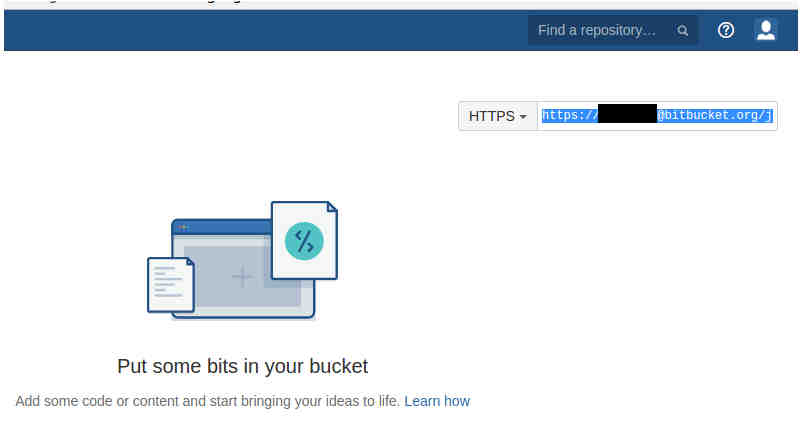
The way I prefer to do it is to first log in into my repository-hosting provider (BitBucket) and create a repository from there, as shown below:


Figure 2. Creating Repository in Bitbucket

Then copy the address of the repository to the clipboard.


Figure 3. Copying the Repository Address to your Clipboard

Open a terminal, navigate to your desired location, and clone the repository locally with the "git clone" command.

Figure 4. Cloning the Repository from the Hosting Provider

2. Making Changes

Basically, just work on your project by adding or modifying files. In my example, I copies two files into our project's folder.


Figure 5. Copying two Files into the Project Folder.

Bonus: use "git status" to view the current repository changes. I use this a lot; sometimes I think way too often.


Figure 6. Viewing the Status of the Repository
The RED filenames are files that have been modified or added in your project, but not yet staged for commit, or in other words, saving a snapshot.


2. Staging Changes

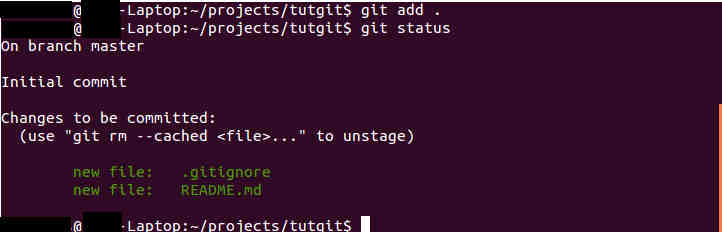
Staging changes simply tells the program which files or changes to actually take a snapshot of. We do this by using "git add ." to stage all files to be committed. Instead of using "." to stage all files, one could specify individual files.

Figure 7. Staging Changes
Note that the "git status" now returns GREEN filenames as they are now staged and ready to be committed.


3. Confirming Changes

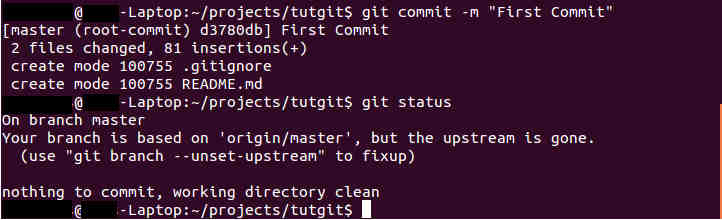
Committing is the same as taking a snapshot of current staged files. This is done with "git commit" command.

Figure 8. Committing Staged Changes
The "-m" option specifies a message between "" describing briefly the current snapshot, so to speak.

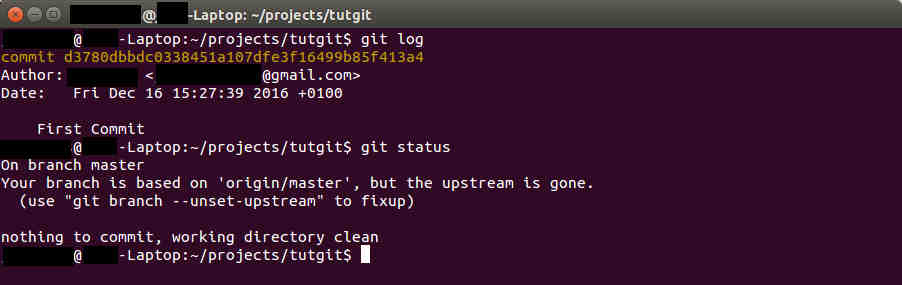
Bonus: use "git log" to view a history of your commits, or snapshots. The most recent commit is now visible in the log.

Figure 9. Viewing Commit History
4. Updating Server

Lastly, we have to "git push" so that the local changes are updated on the server.


Figure 10. Pushing Changes to the Server

If you encounter a message as shown in Figure 10 after issuing the "git push" command, then follow as it has been done in the same screenshot. Afterwards, you should be able to successfully push the changes. You might also be asked for credentials of your account with the repository hosting provider.

At this point, the steps just repeat in a cycle as was shown in Figure 1. This workflow can get you started just as essentials. Obviously, there are tons of other actions and features of Git that are not exposed here. From here on, you could seek some more advanced topics and features from Git. Google is your best friend, and the sky is the limit...


Conclusion

This post served ultimately to recommend a tool that would make your life much easier, and organized, regardless of whether you are a script writer, a web developer, graphics designer, or embedded software engineer. It also got you started with the basic workflow, its uses, and the benefits. For more Git tutorials, a Google search for "git tutorial" will be more than enough to find very instructive articles.

I hope this was as instructive as I had anticipated it to be and also hope that Git will make your life much easier and productive!


Sunday, December 4, 2016

Thesis on Convolutional Neural Network!

After a while of inactivity from blogging in the JVL blog, I finally got new material to post something relevant to the previous publication on Convolutional Neural Networks (CNN). The previous post presented a small literature review on CNN; this time I present a thesis project on the same topic.

If the material of the previous post caught your attention, then this thesis will certainly sparkle further interest. In trying to further strengthen my knowledge on CNN, I decided to take a thesis topic on Resource-aware CNN exploration on CPU-only implementations for image classification that was offered to me. This topic evidently offers that additional research and practical component that would well complement my acquired theoretical understanding. It offers a reinforcement to my learned skills. Furthermore, this project would enable me to work with different tools, libraries, and open-source projects related to machine learning and image processing. I was also looking forward to improving my coding skills in C++, especially when forking from open-source projects.

I must also say, I had quite a difficult time deciding between this CNN topic and another topic that I also found very interesting and was qualified for. The alternative was to work on a faster error correcting scheme for PUF's (Physically Unclonable Fnctions) and to implement the algorithm in an FPGA (Field Programmable Gate Array). This topic actually embodies many of my main interests: information theory, channel coding, scripting and simulations, VHDL implementation on FPGA's, and Embedded Security. As you could readily infer, it was quite a difficult choice to choose the CNN topic over this alternative.

The Thesis

The document presented here is the final document as a result of this project. This is put together with as much relevant details as possible with the purpose of making the experiment repeatable for the reader. Hopefully, the simulation benchmark results and some of the ideas exploration for reducing computation of the CNN algorithm may actually help others.


Closing lines...

After finishing this project, I feel substantially more competent in this area of machine learning. The research and exploration experience from this project gave me an opportunity to exercise as a research engineer, to benefit from and to contribute to open-source, and to compose a document that is useful to the reader, especially for sharing results and for repeating the experiment. The even more valuable take-away skills were the use of several Latex packages to produce a professional-looking documents and the improvement on coding skills and styles.

As is (generally) common to human nature, even after finishing my thesis, I still sometimes wonder "what if" I had taken the other route I described above. Where could that have taken me? What could have gone differently?


Sunday, May 29, 2016

Convolutional Neural Networks - Seminar

In this edition of the JVL blog, I want to present yet another small literature review, but this time on Convolutional Neural Networks (CNN) in the area of machine learning for image processing.

Similar to the previous post about Nanophotonics Interconnects, this write-up was also an obligatory part of my current masters program. This literature review on the topic of Convolutional Neural Networks gives an introductory knowledge about what neural networks are, how they are extended to be convolutional networks, and how they can be used for image processing and other applications.

Again, the requirements were similar to those of the document presented in the previous post: a brief 4 pages literature review about the topic. This serves as an extension to and further practice on understanding and writing scientific papers especially about a foreign topic. Writing a technical paper on a topic foreign to me was demanding as it required the extra effort to get acquainted with the fundamentals. Nonetheless, it was quite an interesting topic and a worthwhile task, and so I will like to share it here.


The Literature Review

The following document introduces fundamental concepts on and recollect my understanding of Convolutional Neural Networks. This is in NO WAY an officially published paper nor does it contain any new contributions from my part. It serves as a technical literature review and writing exercise.


Products that apply Deep Learning

If you wondered where and in what products you see artificial intelligence, then checkout the well-known Amazon products, Echo Dot (2nd Generation) or the Amazon Echo.


Lastly...

As was briefly mentioned, working on a topic that's different from one's own technical area of expertise does require more effort. I reckon CNN wasn't an easy topic to grasp at an instant, but once the fundamentals are there, the rest is basically just feeding to that curiosity. There are a plethora of resources out there, and there is much more being worked on as far as CNN is concerned (different applications, architecture, parameters, etc...).

If you are interested in the topic, I encourage you to look around for more resources and projects about CNN...Even try and play with some of the widely-known Machine Learning frameworks such as Caffe, Torch, Theano, mxNet, TensorFlow, DSSTNE...


As usual, leave a comment if you have one!


Monday, March 28, 2016

Nanophotonics Inteconnect - Literature Review

In this post of  JVL blog, I want to publish a small literature review in the area of Photonics Interconnects.

In partial fulfillment of one of my advanced topics course in IC (integrated circuits) Design during my current masters program, I had to write a small literature review on the topic of photonics interconnects. As it is usual for our advanced topics courses, the lecturer for this course was a guest professor from a foreign institution ( this case from UT Austin, my former alma mater). The guest lecturer was a leading expert in the area of IC Design and who is a researcher interested in nanometer VLSI physical design.

He has published few papers focusing on using nanophotonics, a fairly premature technology, as interconnects in nanometer integrated circuits. We were required to write a brief 4 pages literature review of about 4-5 papers on the topic. On the one hand, we gained some experience in reading and understanding very specific and complex scientific papers in trending research areas of IC Design. On the other hand, we were exposed to and gained practice on writing a technical paper. Although it was not required, I have done it in Latex, which is a compiled word processor very useful in any kind of write-ups. This has been proven very useful in academia.


The Literature Review

The following paper review posted here tries to summarize key concepts and my understanding of the different papers. This is in NO WAY an officially published paper nor does it contain any new contributions from my part. It serves as a technical writing exercise. As usual, leave a comment if you have one! 


And a few final words...

Although it was only a 4 pages write up, it does require a good understanding of the technically-dense and jargon-full scientific papers we had to read. And precisely because it was only 4 pages long, it was also a challenge to pack all the key points and concepts into a highly limited space and still make sense out of it.  

Although technical writing skills was heavily tested during my bachelors, reviewing such novel and complex scientific papers was not. It is worthwhile mentioning the importance of this exercise for future tasks as it paves the way for further interesting assignments...


Sunday, August 30, 2015

Pin Memorization and Storing Technique

In this post, I introduce you to a very simple, yet efficient technique to memorize and secretly store PIN (Personal Identification Number). I want to do this by using an Android App that I have created some time ago to illustrate the concept. Please take note that this technique is not new nor is it my invention; I have just created the App from an old, known concept. I have personally learned this "old-school" technique from an ex-boss who is a wise, old man with myriad of old, yet efficient tricks and hacks. Please click on the following link to check out the App in the Playstore!


Figure 1. Pin and Code Memorizer Logo

I have initially developed this for my personal use. As I have found how useful it was for me (true, no marketing jambalaya), I thought it would be nice of me to share it and teach people about it! =]  But I have to admit that I haven't done a great job at explaining the concept when I talk to people about it. So hopefully, I do a much better job with this post here!

Let's move forward...

Motivation: Why would I need a secured PIN memorization and storage technique?

It is fair to say that people nowadays are deeply submerged into the virtual 'world' and heavily rely on technology to be productive... well, for leisure too. There is simply too many different sources of data and information, accounts that we have to manage, personal data that we want to protect, and passwords we have to remember to protect these information. Just take PIN's for example, how many PIN's do you have to memorize to secure your 'virtual' data and accounts. I could easily point out the PIN for your phone and its SIM Card, for debit and credit cards, some online accounts, and possibly for Identification Smartcards too!! And who knows, maybe you'll need a couple of PIN's more in the near future when the Internet of Things emerges.


Figure 2. SIM PIN Prompt Screenshot

Yes sure, you could encrypt the PIN's and save them in a virtual private vault, or write them on a piece of paper. But keep in mind that you will secure those PIN's with an additional password; if you forget it, you might not be able to recover your PIN's! Needless to say, writing them on a piece of paper is not safe at all. Memorize them all you say? Well this is the safest way!, but good luck memorizing them all... and not forgetting them. Use only one PIN for all your credit cards? What if the PIN is accidentally discovered by a third party? Then you would have to change all your PIN's to re-secure the accesses if he/she has not already gained access to the accounts.

For these reasons, the need of low-complexity and safe PIN storage technique is warranted. The technique that I am proposing actually deals with all problems and drawbacks mentioned above. Whether you choose to use the app (or any other similar app) or plain-old hard copy, you may have the risk of losing the PIN's if you don't have a backup!

Concept: So how does it work?

The concept relies on using some charts composed of blocks with random colors and numbers as shown below.


Figure 3. Example Chart Screenshot

Essentially, you would want to conceal your PIN inside this chart in a pattern that only you know. Even if a person for one reason or another gets access to your chart, without your secret pattern he/she won't be able to decipher the PIN from this random-looking chart. So, don't worry if your charts are stolen!

Basically, you are hiding your PIN inside a chart that others would view as a bunch of blocks with random numbers and colors. For you to make sense out of it, you will have to memorize one pattern of your own. Your pattern can be based on position, color, and numbers. You could apply this same secret pattern to different charts to conceal different PIN's!

Not convinced? Well, let's look at a couple of examples to let the concept sink in...

Example 1: Using Colors as Pattern

Let's look at the chart in Figure 4, below. A PIN of mine (not really) is concealed in the chart with a pattern that I have memorized. I can tell you my pattern is based on color. Could you guess what my PIN is? I doubt it.


Figure 4. Example Chart 1

Now I need to retrieve the PIN, and I know that each digit of my PIN is placed to the Left of the first 4 Blue blocks. Looking at the chart, I find my PIN to be 4267, as shown in Figure 5.


Figure 5. Example Chart 1 with PIN Selected


The pattern is ultimately your protection against other viewers. You are obviously not constrained to choosing a pattern based on color. Let's look at another example.

Example 2: Using Positions as Pattern

Let's do the same exercise as before. I have a very important PIN concealed here based on position. What is my PIN?


Figure 6. Example Chart 2

Well, the digits of the PIN are placed at the Top and Bottom of every Fourth Column. So, my PIN is 6061. This pattern was a bit complicated and uninteresting, but it is here just to illustrate the point. You may choose a simpler one, or even a more complex pattern.


Figure 7. Example Chart 2 with PIN Selected

Now, let's look at the last example...


Example 3: Using Numbers as Pattern

As usual, I have the PIN of my credit card (maybe?) concealed here based on numbers. What is my PIN?

Figure 8. Example Chart 3
My PIN's digits are found after the first 4 multiple of 3 numbers scanned from Left to Right, Top to Bottom. So scanning through we find 9 is multiple of 3, our first digit is 6. The next multiple of 3 number is 9, so the second digit is 2, and so on to find that our PIN is 6245, as shown in Figure 9.

Figure 8. Example Chart 3 with PIN Selected

Conclusion


I hope the previous examples have illustrated the concept of this technique (and the App). Please feel free to try it out if you like the concept. If you don't like to use Apps, you could easily make the same chart on excel and print a hard copy out in colors! Of course, there are tons of possibilities you could use as pattern by mixing the different criteria for pattern. Use your own creativity!

And If you are still not convinced of the level of security that this simple technique offers, then I would really appreciate if you share other methods you use or know of! Hope you are satisfied with this simple trick, and it serves useful to you!


Thursday, December 25, 2014

Portable Hard Disk Drive Updater with Bash

Welcome to yet another (hopefully informative) post of the JVL blog!

This time we will delve into something new: Bash Scripting. This edition of the blog engages you into the basics of Bash Scripting. So, what exactly is Bash? Basically, Bash, or "Bourne Again Shell" is a Command Interpreter of the Unix System. Bash is a shell equivalent to Batch (in Windows OS) but for Linux, a derivation of Unix. A shell is an interface that interacts with the user and interprets commands typed by users to execute tasks directly on services of the Operating System. In other words, it is the interpreter between the user and the Operating System. Many of the Linux distributions use Bash as the default shell interpreter including the well-known Ubuntu. First, let's look at a screenshot of the terminal from Ubuntu.


Figure 1. Screenshot of Ubuntu's Terminal

As we have seen in previous posts, command interpreters can be very powerful and useful in performing repetitive tasks that users may not want to perform manually. To better explain the basics of Bash Scripting, I will walk you through a simple script I have written to update a Portable Hard Disk connected to my Linux system through USB. The Portable Hard Disk updates files from "Secondary", a datastore partition. "Secondary" stores all my data (Music, Videos, Documents, Installers, etc...) in my computer. As many would agree, it is a good idea to backup the datastore partition frequently to avoid unnecessary catastrophic losses... This script does exactly that!! Now let's take a look at the code...

The Hard Disk Drive Updater

The script has a total of less than 30 lines of code.  Although the code is quite simple, I have divided them in 3 blocks of codes so that they are are easier to follow and understand, In addition, this layout keeps consistency and uniformity. Let's take a look at the first block.


1
#!/bin/sh
2
3
#This script is to mirror the content of Secondary into the corresponding portable hard disk drive.
4
5

6
7
CURRENT_DIR=/media/user/Secondary
8
UPDATE_DIR1=/media/user/Seagate
9
UPDATE_DIR2=/media/user/Passport

The first line is quite important as it tells the shell what kind of interpreter to use (in this case I have specificed Bash) The following line (starting with #) is simply a comment line which the interpreter ignores. Lines 7-9 define some variables. That is, they save the directory path into symbolic representations. For example, CURRENT_DIR represents the path to /media/user/Secondary and so forth. Next, we have the main algorithm in the following block:

12
#Check if the Seagate drive is present. In other words, mounted.
13
if [ -d "$UPDATE_DIR1" ] && [ -d "$CURRENT_DIR" ]
14
then
15
        echo "Seagate Backup Drive was found correctly!"
16
        #updates the folder with the rsync function while excluding certain folders.
17
        sudo rsync -gloptvru --delete --exclude '*.tib' --exclude 'System Volume Information' --exclude '*RECYCLE*' $CURRENT_DIR/* $UPDATE_DIR1
18
19
fi

Observe Lines 13-19 for its syntax and structure. It is a big conditional block of code, the if-then. Similar to the conditional if-then from other programming languages, the code inside the "then" block is executed if the statement after "if" is evaluated to true. The "if" in Line 13 checks whether we have both the source and destination folders present and mounted in our Linux system. This implies that our Portable Hard Drive partition is mounted correctly and present when the statement is evaluated to true.

Lines 17-18 use the rsync program along with its plethora of features and options to transfer files. These options can greatly speed up and enhance the transfer process. For instance, the code copies source files from CURRENT_DIR to UPDATE_DIR1 preserving file attributes such as group owners and users owners, updating and skipping files that already exist in the destination folder, transferring files in verbose and recursive mode, and more.

Also notice that files with '*.tib' file extensions, 'System Volume Information', and 'RECYCLE' are excluded  from this command. The '*.tib' is used to omit files containing such extension since I know such files do not need to be updated. The other parameters refer to files that contain important information about the partition. Therefore, we want to skip them to avoid being overwritten. Please refer to the rsync manual page for detailed information. Be aware that you use this at your own risk.

22
#Check if the Jams' Passport Drive is present. In other words, mounted.
23
if [ -d "$UPDATE_DIR2" ] && [ -d "$CURRENT_DIR" ]
24
then
25
        echo "Jams Passport was found correctly!"
26
        #updates the folder with the rsync function while excluding certain folders.
27
        sudo rsync -gloptvru --delete --exclude '*.tib' --exclude 'System Volume Information' --exclude '*RECYCLE*' $CURRENT_DIR/* $UPDATE_DIR2
28
29
fi

As you may have already noticed, this block of code Lines 22-29 is exactly the same as the previous block, Lines 12-19, except that they differ in their destination folders: UPDATE_DIR2 vs UPDATE_DIR1. What does it mean then? Simple. As I had 2 different Portable Hard Drives, I check which of the 2 drives is connected to the computer and update accordingly. So UPDATE_DIR1 and UPDATE_DIR2 represent 2 different Portable Hard Drives partitions. In another words, the interpreter only executes the code that corresponds to the connected drive.

To tweak this code to fit your needs, you have to change the paths defined in Lines 7-9 to your own paths. If you have a 3rd Portable Hard Drive, then just add a 3rd variable, say UPDATE_DIR3, specify its path, and replicate the if-then block with the adapted 3rd variable. Indeed, it is as simple as described. What if you only have 1 Portable Hard Drive? What should you do?

Products Recommendations

If you think this might be a method you could use to backup files, then I suggest you get a reliable portable hard drive. I personally have a Seagate and a Western Digital and have found them to be quite reliable (5+ years old). You could check this Seagate Backup Plus Slim 2TB Portable External Hard Drive USB 3.0 or this other WD 1TB Elements Portable External Hard Drive - USB 3.0 out.


If you wanted to use something a bit more compact or start off with a less expensive device, USB drives could actually work as well. I have personally had SanDisk's USB drives  and never had any issues with them. Check out SanDisk Ultra 32GB USB 3.0 Flash Drive if you are interested.

And some final words...

As we have explored a bit of the Bash and learned some of its basics, we can progress to discover more functionalities and features that it can offer. This little script serves as an initial step to discover a lot more possibilites for this powerful and versatile tool... Beware though! You use this solely at your own risk. Again, I am not responsible for the damages that this may cause. Misuse can lead to loss of data. Refrain yourself from testing this script on important data. As customary, I welcome comments and suggestions! And hope this was somewhat useful to you!!! Don't hesitate to contact me for questions!

Important: You use this at your own risk as I will not be held responsible for any damage you may cause.


Sunday, August 31, 2014

Folders Updater with Batch

In this post, I present yet another Batch script related to Files and Folders updating but this time with extended functionality. This piece of work was intended to update portable Hard Disk Drives connected to a workstation in a network with a File Server that contains a list of folders with files that are updated and changed oftenly. These hard drives are used by Field Engineers to store important information required for daily field activities. Due to the type of instrument it serves as and the numerous factors affecting the day to day activities of a Field Engineer, it was important for the script to fulfill certain requisites.

First Functionality: Selectable Starting Point

Since said folders contain a collection of large files, the list of folders can take ridiculously long time to fully update (given that much data have been added/updated). Moreover, Field Engineers are often assigned jobs spontaneously, thus requiring them to prepare for the job in a short time span. Therefore, it was imperative that the user can prioritize which folders to update first, depending on the type of job. In light of these, the script has added functionality for the user to be able to choose from which letter to start updating. For example, if the user chooses to start from the letter 'M', then the script will update all folders with names starting with 'M' and onward (in alphabetical order) until the last folder is updated.

Figure 1. Screenshot of CMD at Prompt for Letter
Second Functionality: Auto-Update

Another added key functionality of this script is its ability to auto update itself from the File Server. For instance, a copy of the script must reside in each of the portable Hard Disk Drives. Thus it would be too tedious and redundant to frequently check if there is a newer version in the server and to update the script as necessary. If this functionality had not been there, then this manual process would have been done by whatever amount of users exists. Thankfully, the script is written such that it can look into a location within the File Server and checks whether a newer version exists, then it would update accordingly. This, naturally, saves the users time and work.

New Formatting and Style

Additionally, I will try something new: the code presentation. The code itself will be formatted and presented differently. Hopefully, this will be an improvement over the previously used style and format. At least it is for me; the code formatting is more automatic, because I upload the code to GitHub and let it do the formatting. Throughout the document, I will paste in snippets of code so that it's easier to follow.

So let's get started directly into the code...


Extended File Updater Script: Preparations and Housekeeping

Please keep in mind that the code has been slightly modified to fit into this blog ― not much, only some paths and filenames. So for starters, housekeeping and preparation codes before the real task.


1
@echo off
::Checks if PC is connected to the server. If not exit.
2
3
if NOT EXIST "\\mynetworklocation\mydocuments" exit
4
::Deletes any temp.bat in Z: which could be a local location or removable device.
5
if EXIST "Z:\temp.bat" del /F "Z:\temp.bat"
6
:: Checks the software creation dates.
7
for /F "Delims=" %%I In ('xcopy /DHYL \\where_script_is_located\Generic_Updater.bat Z:\Generic_Updater.bat ^|Findstr /I "File"') Do set /a Newer=%%I 2>Nul
8
9
if %Newer% == 1 goto Update
10
:: T: will be mapped to the folder mydocuments within the server.
11
subst T: "\\mynetworklocation\mydocuments"
12
:: Change directory to our recently mapped T:
13
cd /d T:
14
:: Loops to update the folder tree.
15
for /d %%A in (*) do if NOT EXIST Z:\mydocuments\%%A md "Z:\mydocuments\%%A\1offline_data\"

Here Lines 1-15 are some preparations work before actually executing the main task. Line 1 tells the interpreter not to print out the code to the terminal, while Line 2 checks that a connection to the network resource is possible and the folder is available. Line 5 checks whether the temporary file exists and if so, deletes it. This temporary file, temp.bat, is created by this script to execute additional code that will update the file if there is a newer version in the File Server.

More importantly, Lines 7-9 check if the file residing in the server location is newer or older than the current one in our Hard Drive, which is set to Z:\. As was mentioned, if there is a newer version, then temp.bat is created and executed to update to latest version.


Important: Please notice that I have set all the Hard Drives to be assigned the letter Z:\ in the computers to work with this script. This script assumes the Hard Drives to be in Z:.

Now that we have checked preconditions, we map our network location to T: (Line11-13) and check if all the folders present in T:\ are also in our Hard Drives. If this is not the case, then create said folders (Line 15).

Extended File Updater Script: Some Functions

This part consists of codes written as functions. The first function, Line 17-22, prompts the user for the letter from which he or she wishes to start updating.This function actually makes a call in Line 21 to another function― :toUpper which covers Line 24-35. This small function, taken from the mentioned source, converts lowercase character to uppercase to avoid discrepancies.

16
::Added functionality to ask for which letter to start.
set input = a
17
18
set /P input=Please enter which letter you want to start updating:
19
set letter=%input:~0,1%
20
echo %letter%
21
call :toUpper letter
22
goto F1
23
24
:toUpper str -- converts lowercase character to uppercase
25
::           -- str [in,out] - valref of string variable to be converted
26
:$created 20060101 :$changed 20080219 :$categories StringManipulation
27
:$source http://www.dostips.com
28
if not defined %~1 EXIT /b
29
for %%a in ("a=A" "b=B" "c=C" "d=D" "e=E" "f=F" "g=G" "h=H" "i=I"
30
            "j=J" "k=K" "l=L" "m=M" "n=N" "o=O" "p=P" "q=Q" "r=R"
31
            "s=S" "t=T" "u=U" "v=V" "w=W" "x=X" "y=Y" "z=Z" "ä=Ä"
32
            "ö=Ö" "ü=Ü") do (
33
    call set %~1=%%%~1:%%~a%%
34
)
35
EXIT /b
36
:F1


The following snippet Line 39-43 is part of the main body with a very specific task: to loop through and update the folders in our Hard Drive, Z:\. Then Line 44 serves as flow control and redirects to the next line of code it should execute.

38
:: Loops through all folders inside Foreigner and update the folders in Z: (hard drive)
39
setlocal EnableDelayedExpansion
40
for /D %%C in (*) do (
41
        CALL :FUNC1 "%%C"
42
)
43
Endlocal
44
GOTO FOLLOW1


Notice that this piece of code makes call to :FUNC1, which is presented in Lines 47-52, below.

45
::This function will extract the first letter and compare it against the letter input by the user. Then update the folders with that starting letter.
46
47
:FUNC1
48
set "theword=%~1"
49
set theletter=!theword:~0,1!
50
echo %theletter%
51
if "%theletter%" GEQ "%letter%" robocopy /Z /E /MIR "%~1\1offline_data" "z:\mydocuments\%~1\1offline_data"
52
EXIT /b


As the comments describe, the above code checks if the letter entered by the user is "greater or equal to" the first letter of current folder's name. If it is not, then skip it and continue until we find folders with names that fulfill such condition.

Extended File Updater Script: Some Final Checks

We also have to make sure that folders deleted in our File Server has to be reflected in our Hard Drives. For instance, if the administrator deletes a folder in the File Server, then the script would not know that this change took place. So the following code takes care of that along with other finishing tasks.

54
:: Loops through HDD to check if Server has all the folders inside HDD mydocuments. If not, then it has been changed/deleted and should be removed from HDD as well.
55
56
:FOLLOW1
57
Z:
58
cd mydocuments
59
for /d %%B in (*) do if NOT EXIST T:\%%B rd /Q /S "Z:\mydocuments\%%B\"
60
:: Free up the mapping.
61
cd /d C:
62
subst T: /d
63
:: We are done at this point.
64
echo Update performed succesfully... Now program will exit...
65
Pause
66
Exit


At this point you might ask, where is the code for the temp.bat that actually updates the script from the server? Well, here below. Remember that this piece of code is executed only if the condition in Line 9 is true. In other words, %Newer% == 1.

67
:Update
68
::If File in server is newer, create a separate batch file to update the script and reexecute.
69
echo start /wait robocopy \\where_script_is_located\ Z:\ Generic_Updater.bat>Z:\temp.txt
70
echo attrib -h Z:\Generic_Updater.bat>>Z:\temp.txt
71
echo touch -d "+1 minutes" Z:\Generic_Updater.bat>>Z:\temp.txt
72
echo attrib +h Z:\Generic_Updater.bat>>Z:\temp.txt
73
echo Z:\Generic_Updater.bat>>Z:\temp.txt
74
Z:
75
ren temp.txt temp.bat
76
::Execute the newly written batch file.
77
Z:\temp.bat
78
Pause


In short, this code basically creates a file named temp.bat in Z:\ (our Hard Drive) with code that will copy the newer script from the File Server and paste it in our Hard Drive replacing the old script file. Finally, temp.bat is executed and at the very end, it executes our main script (Generic_Updater.batagain as shown in Line 73.

Notice: The Echo and the ">>" actually redirect text into whatever is to the right of >>. For example, Line 70 actually writes attrib -h Z:\Generic_Updater.bat into the textfile temp.txt. This is later renamed to temp.bat in Line 75.

Products Recommendations


If you think this might be a method you could use to backup files, then I suggest you get a reliable portable hard drive. I personally have a Seagate and a Western Digital and have found them to be quite reliable (5+ years old). You could check this Seagate Backup Plus Slim 2TB Portable External Hard Drive USB 3.0 or this other WD 1TB Elements Portable External Hard Drive - USB 3.0.

If you wanted to use something a bit more compact or start off with a less expensive device, USB drives could actually work as well. I have personally had SanDisk's USB drives  and never had any issue with it. Check out SanDisk Ultra 32GB USB 3.0 Flash Drive if you are interested.

And Concluding...

As usual, I am not responsible for any damage that this script may cause. So from here you can Copy/Paste all the snippets and place them in the order described by the line numbers. Numbers that are skipped are empty lines, so don't panic. This long piece of work exercises many useful concepts that can be used in other scripting projects. Unfortunately, you will have to understand the code fairly well in order to be able to adapt it to your environment. The way this is written is not particularly aimed to be flexible to change into other working environment. Nonetheless, you can always ask me. See you till next one!!!

Important: You use this at your own risk as I will not be responsible for any damage you may cause.